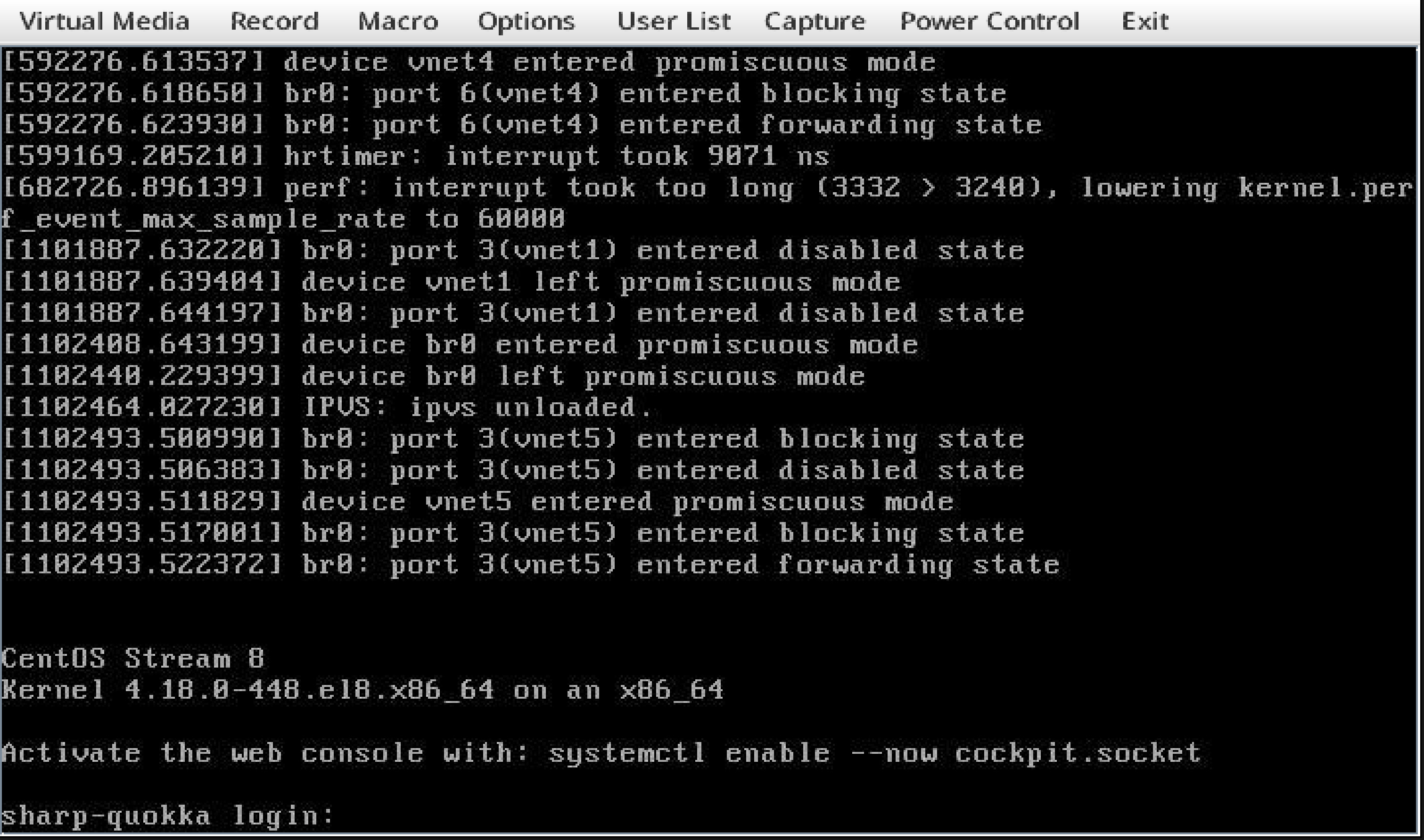
How to access the IPMI KVM console
Objective
The main purpose of IPMI KVM is to facilitate remote server management, troubleshooting, and maintenance tasks, providing administrators with a way to interact with a server's operating system, BIOS, and other pre-boot environments remotely.
Requirements
- Access to OpenMetal Central
- Java is installed on your local machine.
- To download and install the latest version of Java, click java.
In order to access the IPMI of some legacy products you may need to adjust the Java security settings to allow SHA1. In your downloaded copy of Java 8, open the file lib/security/java.security and navigate to where jdk.jar.disabledAlgorithms is defined and change the denyAfter date associated with SHA1:
# Before
jdk.jar.disabledAlgorithms=MD2, MD5, RSA keySize < 1024, \
      DSA keySize < 1024, include jdk.disabled.namedCurves, \
      SHA1 denyAfter 2019-01-01

# After
jdk.jar.disabledAlgorithms=MD2, MD5, RSA keySize < 1024, \
      DSA keySize < 1024, include jdk.disabled.namedCurves, \
      SHA1 denyAfter 2020-01-01
Please bear in mind that while the IPMI Java applet can be utilized on macOS, certain compatibility concerns may arise. Therefore, it is advisable to opt for a system running either the Windows or Linux operating system for a smoother experience.
Instructions
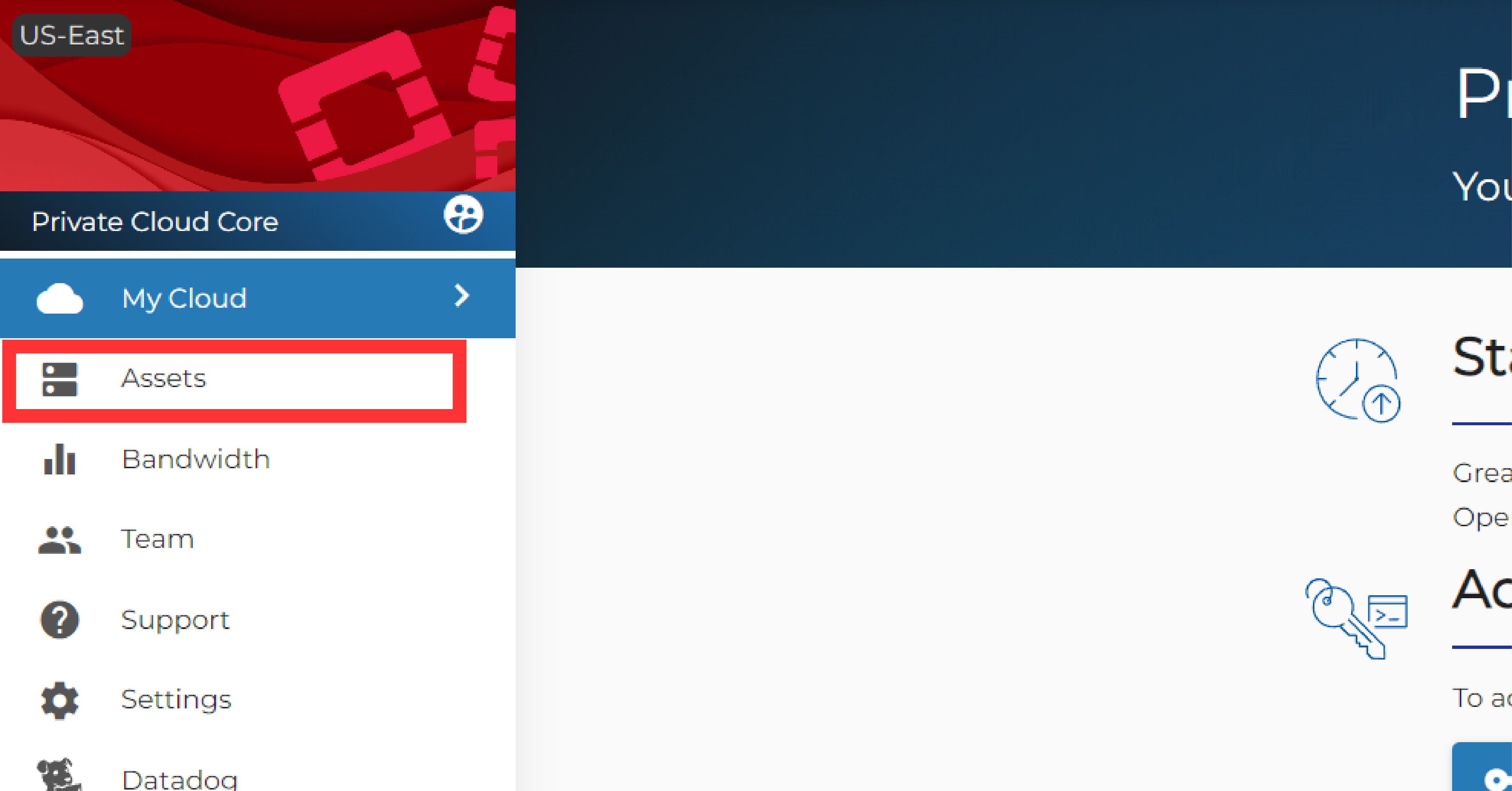
First, you will want to navigate to the Assets page for the cloud with the
node you wish to access.
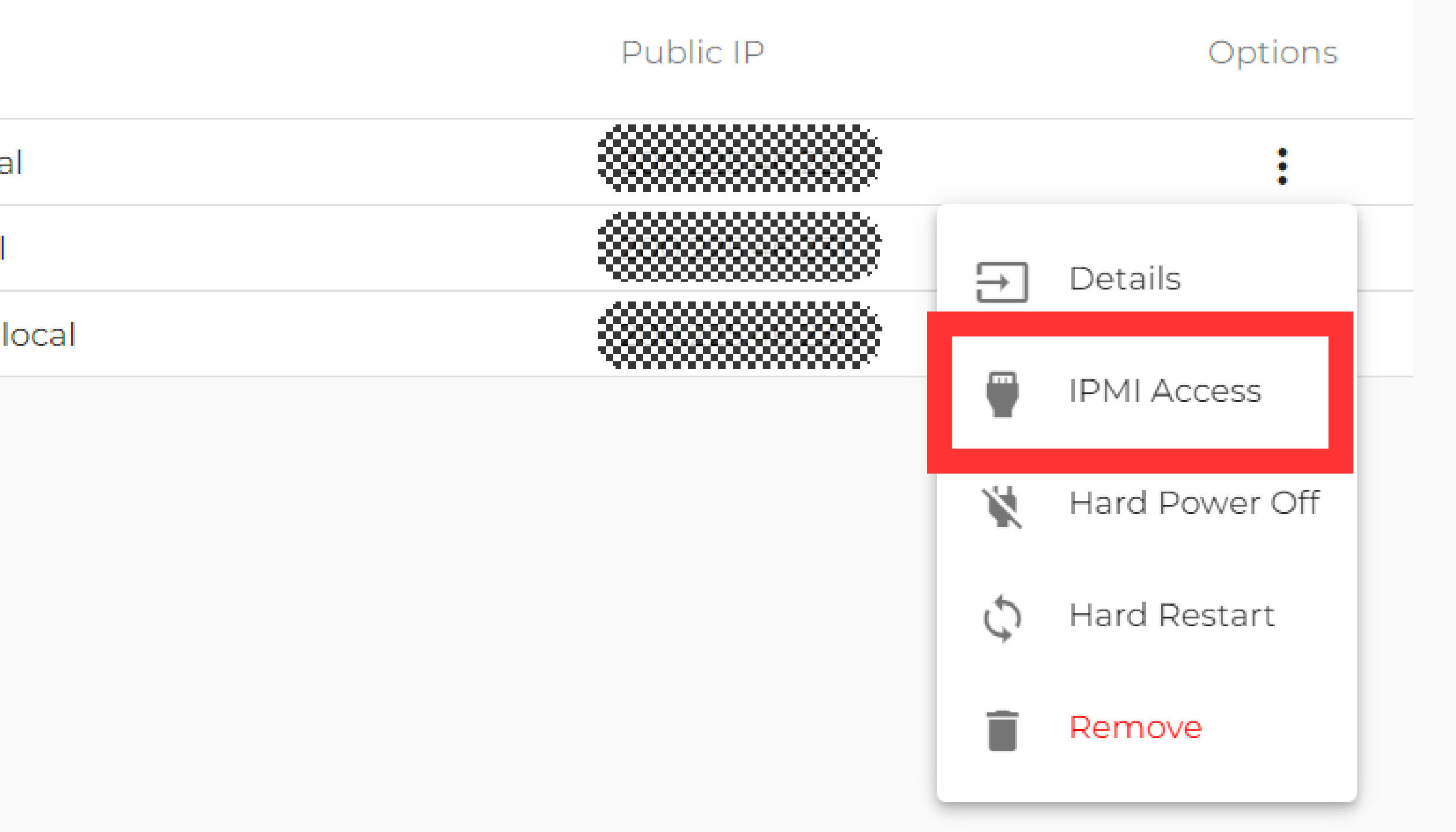
Next, select the menu (⋮) next to the server you want to access, then
select IPMI Access :
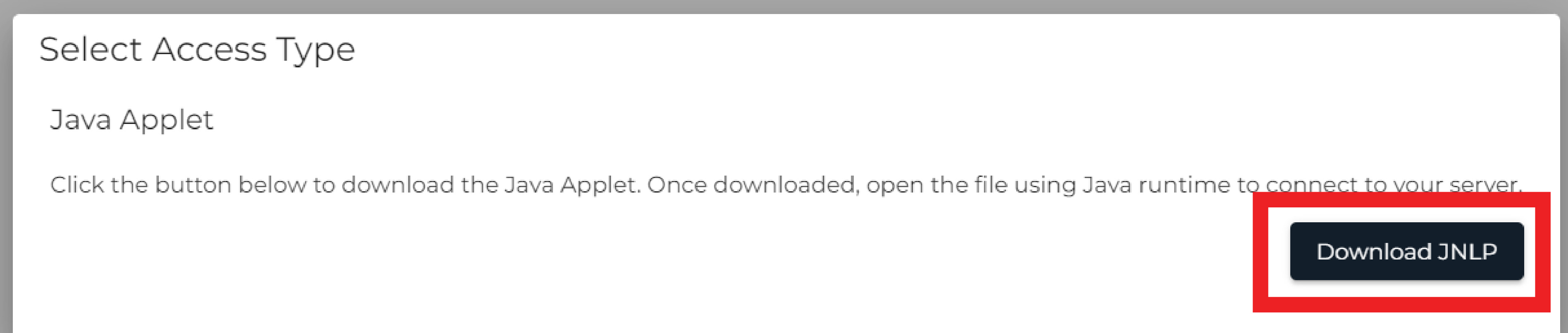
On the next menu, select Download JNLP :
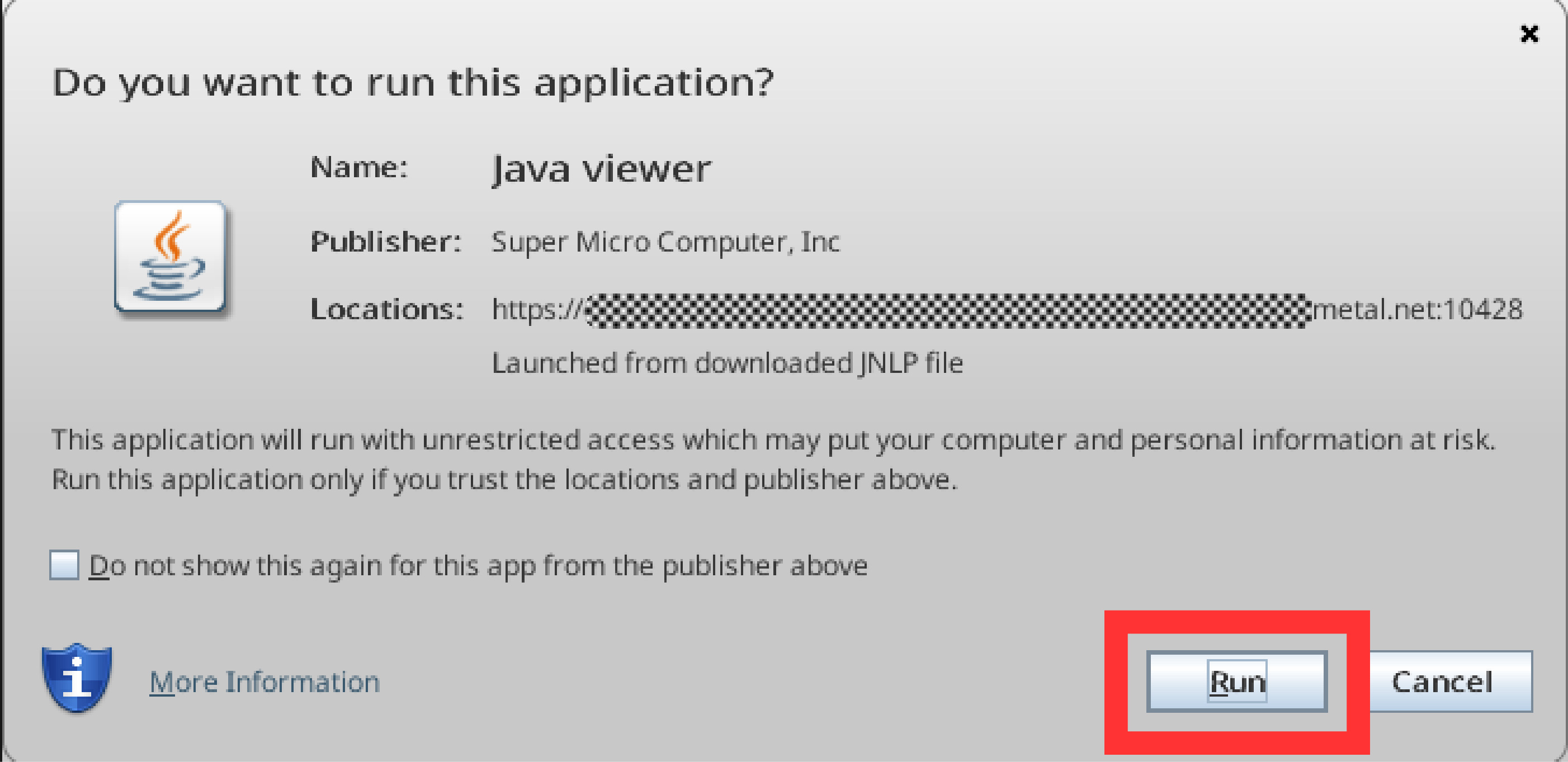
Once the <hostname>.jnlp has downloaded, open it and hit Run when prompted:
You will then enter into the virtual console where you can enter your root credentials: